
The best AI coding assistant isn't the one with the fanciest UI — it's the one that thinks like a developer.
I used to think OpenAI was the undisputed king of AI. GPT-4o was my daily driver, and I evangelized it to anyone who would listen. Then Claude Opus 4.1 arrived, and everything changed. When Opus 4.5 dropped in November 2025, setting records on SWE-bench with 80.9% accuracy, I realized I had been limiting myself. This is the story of how a command-line tool with no fancy interface became the most important software in my development workflow. This is the story of Claude Code.
My Journey to Claude Code
Let me take you back to where this all started. Like many developers, I had been bouncing between AI assistants for years. ChatGPT was the obvious choice—everyone was using it. I paid for GPT-4, then GPT-4o, always chasing the latest model. It was good. It helped me write code faster. But something was missing.
The turning point came when I tried Claude Opus 4.1 on a complex refactoring task. I had a legacy PHP codebase—thousands of lines of spaghetti code accumulated over years of quick fixes and technical debt. GPT-4o would tackle it piece by piece, often losing context between sessions. Claude approached it differently. It understood the architecture. It saw patterns I had missed. It suggested changes that weren't just correct—they were elegant.
The difference wasn't just intelligence—it was understanding. Claude didn't just process my code; it comprehended my codebase.
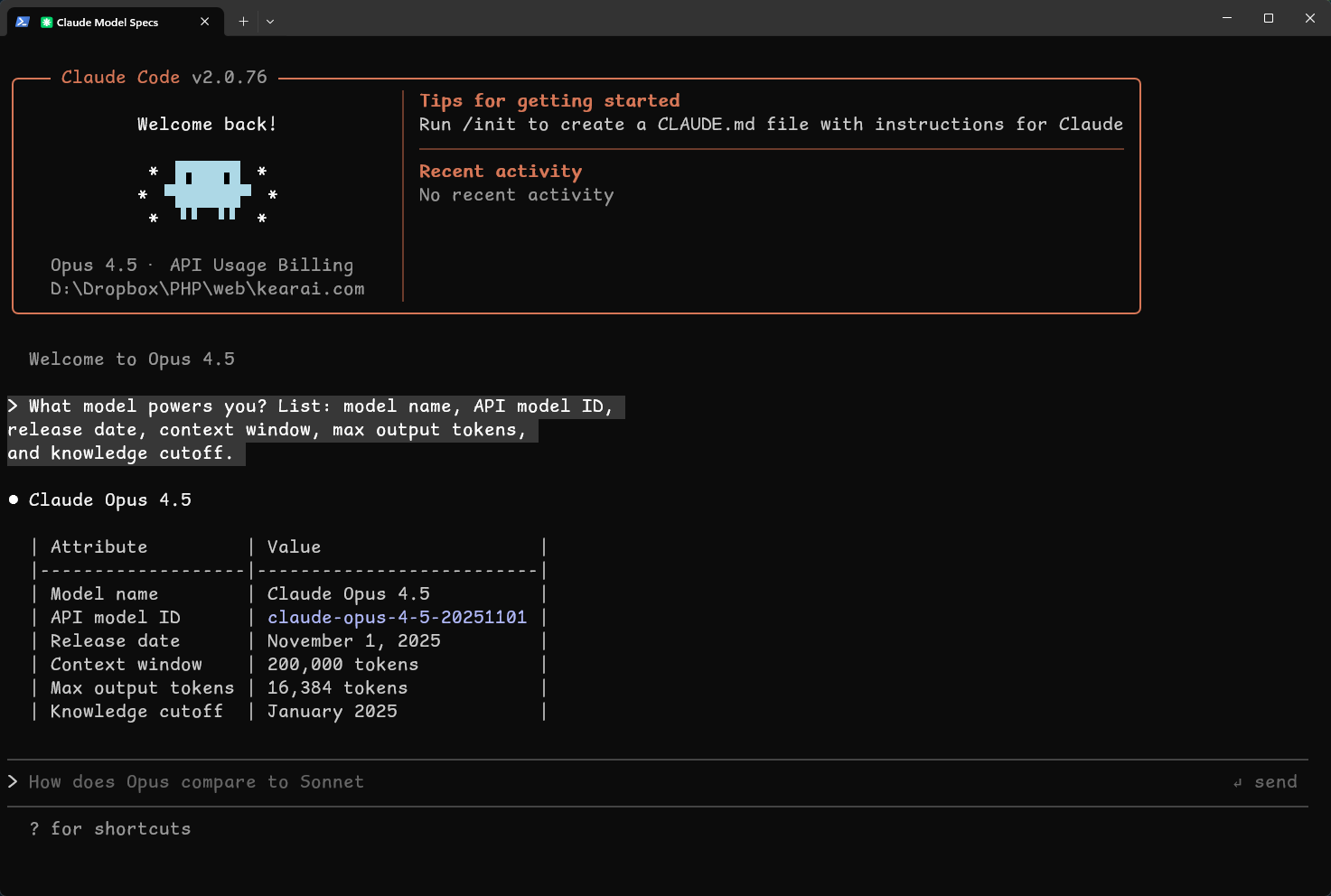
When Anthropic released Claude Opus 4.5 in November 2025, I made the full switch. The model that scored higher on Anthropic's internal engineering exam than any human candidate ever had. The model with 80.9% accuracy on SWE-bench Verified—a clear 3-5 percentage point lead over every competitor. But more importantly, the model that felt like having a senior developer sitting next to me, one who never got tired, never got frustrated, and had read every programming book ever written.
Today, I use claude-opus-4-5-20251101-thinking as my main model for serious work. For quick questions and daily tasks, standard Opus 4.5 handles everything beautifully. My personal ranking after extensive use: Claude Opus 4.5 > GPT-5.2 > Gemini 3 Pro. Each has its strengths, but Claude has become my default.
What is Claude Code?
Claude Code is Anthropic's agentic coding assistant—a command-line tool designed for developers who want AI deeply integrated into their development workflow. Unlike chat interfaces where you copy-paste code snippets back and forth, Claude Code lives in your terminal, directly alongside your project files.
Think of it as the evolution of AI coding assistance. First-generation tools like GitHub Copilot focused on autocomplete—predicting your next line of code. Claude Code represents something fundamentally different: a development partner that understands your entire project, can read and modify files, run tests, execute shell commands, and reason about complex architectural decisions.
🧠 Full Project Awareness
Claude Code reads your entire codebase, understanding relationships between files, dependencies, and architectural patterns. It maintains context across sessions.
🔧 Direct File Manipulation
No more copy-pasting. Claude Code can read, create, and modify files directly in your project. Changes are tracked and can be reviewed before committing.
💻 Shell Command Execution
Run builds, tests, linters—any shell command—with Claude's guidance. It can diagnose errors, suggest fixes, and iterate until things work.
🔄 Agentic Workflows
Give Claude a high-level goal, and it breaks down the work, executes steps, handles errors, and reports progress. True automation, not just suggestion.
The Anthropic Difference
Before diving deeper, it's worth understanding who built this. Anthropic was founded by Dario Amodei and a team of researchers who left OpenAI. Dario's background spans Baidu's AI research and OpenAI's leadership, giving him unique insight into building AI systems responsibly. Anthropic's mission—creating AI that's safe and beneficial—permeates Claude Code's design.
This isn't just marketing. Claude Code has thoughtful safety features built in: permission prompts before executing potentially dangerous commands, the ability to restrict file access, and clear explanations of what it's doing and why. It feels like a tool designed by people who actually think about consequences.
Claude Code for VS Code
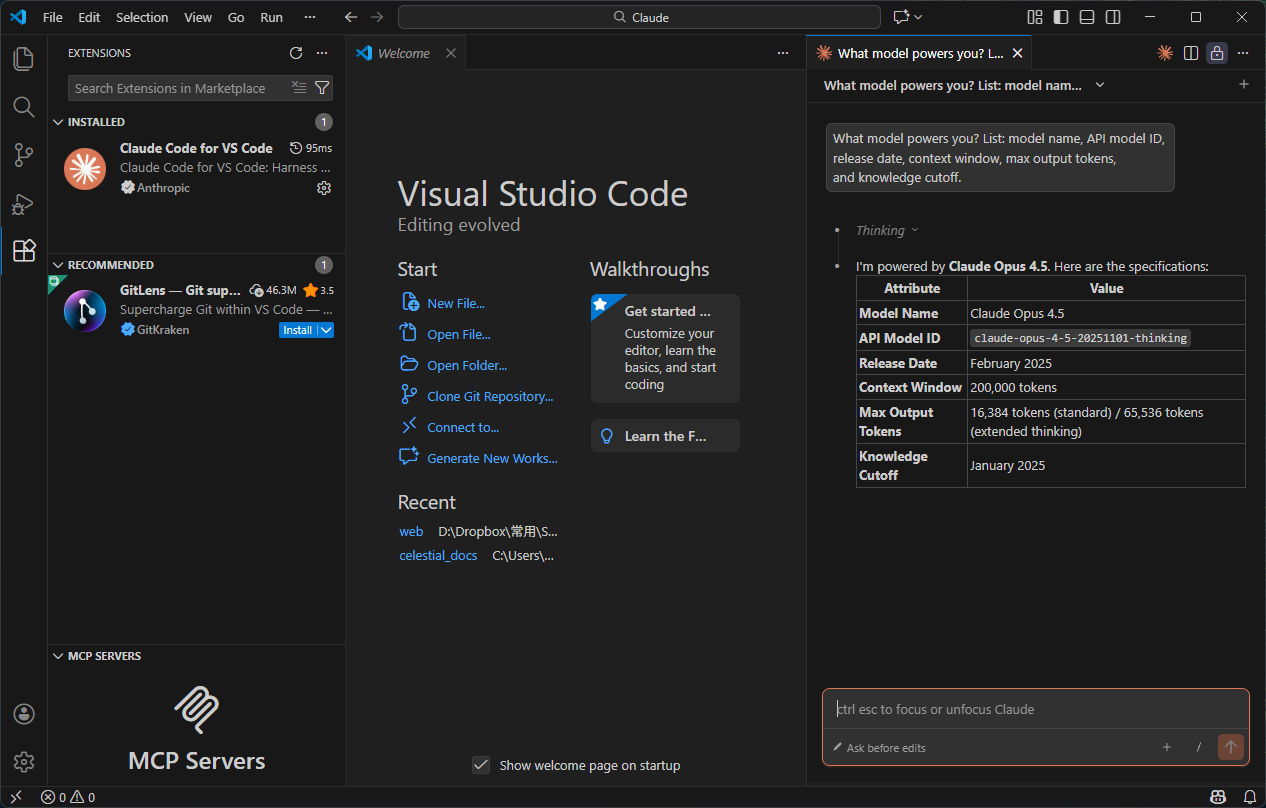
Not everyone wants to live in a terminal, and Anthropic understood this. Claude Code for VS Code brings the full power of Claude Code into your IDE, wrapped in a familiar interface. It's my top recommendation for developers who are new to agentic coding or anyone who prefers visual workflows.
Installation and Setup
Search "Claude Code" in VS Code's extension marketplace, or visit the official extension page. One click to install.
Sign in with your Anthropic account. The extension handles OAuth seamlessly—no API keys to manage manually.
Navigate to any project folder. Claude Code automatically scans and indexes your codebase structure.
Open the Claude sidebar and start describing what you want to build. The AI handles the rest.
VS Code-Specific Features
The extension isn't just a wrapper around the CLI. It integrates deeply with VS Code's features:
IDE Integration Highlights
- Inline Diffs: See proposed changes highlighted directly in your editor before accepting
- Multi-Panel Support: Run multiple Claude instances in different panes for parallel work
- File Context: @-mention files to include them in your prompt automatically
- Terminal Integration: Claude can access VS Code's integrated terminal
- Quick Commands: Command palette integration for common actions
My recommendation: If you're new to agentic coding or not comfortable with CLI, start with the VS Code extension. You get 90% of the power with a gentler learning curve.
Why Programmers Love the CLI
Here's something non-programmers often don't understand: the command line isn't primitive technology that developers are too stubborn to abandon. It's a choice. A philosophy. And Claude Code embraces this philosophy completely.
The command line is simple, fast, and efficient. No buttons to hunt for. No menus to navigate. You type what you want, and it happens. Every action is explicit. Every operation is scriptable. There's a reason system administrators, DevOps engineers, and backend developers live in terminals—it's the most direct path between intention and execution.
The Claude Code CLI Advantage
Speed
No UI rendering overhead. Responses stream directly to your terminal. On fast connections, it feels instantaneous.
Focus
No distractions. No sidebars fighting for attention. Just you, your code, and the AI. Pure flow state enablement.
Scriptability
Pipe commands together. Integrate with bash scripts. Automate workflows. The Unix philosophy applies.
Resource Efficiency
Runs anywhere—including headless servers, SSH sessions, and low-powered machines. No Electron bloat.
As one developer put it: "Due to the CLI-based nature of Claude Code, it urges you to do more exploration. Because of lack of visual UI cues, it encourages exploration. A lot of stuff is hidden and you need to find it. It rewards you for curiosity."
There's something almost magical about this. In an age of increasingly bloated software with ever-more-complex interfaces, Claude Code goes the opposite direction. It trusts developers to know what they're doing. It gets out of the way. And somehow, this simplicity makes it more powerful, not less.
Claude Code is likely post-trained with the same tools it currently uses. The model is just more comfortable in the CLI harness—it feels native, not bolted-on.
Getting Started
Let's get practical. Here's how to go from zero to productive with Claude Code.
Installation
npm install -g @anthropic-ai/claude-codeRequires Node.js 18+ installed on your system.
# macOS/Linux
curl -fsSL https://claude.ai/code/install.sh | bash

# Windows (PowerShell)
irm https://claude.ai/code/install.ps1 | iex
First Launch
Navigate to your project directory and type:
claudeThat's it. One command. Claude Code starts and automatically begins understanding your project.
The /init Command
When you first open Claude Code in a new project, run /init. This creates a CLAUDE.md file—Claude's memory of your project. It scans your codebase, identifies key files, understands your tech stack, and documents project-specific context.
/initClaude analyzes your project structure and creates a context file for future sessions.
The CLAUDE.md file is special—Claude automatically reads it at the start of every conversation. You can add instructions here: coding standards, preferred patterns, things to avoid. Think of it as onboarding documentation that Claude actually reads and follows.
CLAUDE.md files can be hierarchical. Have one at the project root for global rules, and nested ones in subdirectories for module-specific instructions. Claude prioritizes the most specific file.
Core Concepts and Commands
Essential Commands
Claude Code's power lies in its slash commands. Here's the complete reference:
Context Management
/add-dir
Add a directory to Claude's context for analysis
/clear
Clear conversation history and free up context window
/compact
Compress conversation to essential points, preserving key context
/resume
Resume a previous conversation session
Project Setup
/init
Initialize project and generate CLAUDE.md context file
/permissions
Configure file and command execution permissions
/config
View and modify Claude Code configuration
Development Workflow
/review
Request code review of recent changes or specific files
/pr-comments
Analyze and respond to pull request comments
/install-github-app
Set up automatic PR reviews via GitHub integration
Session Control
/model
Switch between Opus, Sonnet, and other available models
/cost
Display token usage and cost for current session
/logout
Sign out of current Anthropic account
/vim
Toggle vim keybindings for input
Advanced
/mcp
Manage Model Context Protocol servers
/memory
View and edit persistent memory across sessions
/terminal-setup
Configure terminal integration and shell settings
Plan Mode vs Auto-Accept Mode
One of Claude Code's most important features is the ability to toggle between planning and execution modes. Use Shift+Tab to cycle between them.
🎯 Plan Mode
Claude analyzes your codebase with read-only operations. It proposes changes but doesn't execute them. Perfect for:
- Understanding complex codebases
- Getting high-level architectural suggestions
- Safe exploration without risk
- Building confidence before execution
⚡ Auto-Accept Mode
Claude executes changes directly, automatically accepting file modifications. Use when:
- You trust Claude's judgment
- Working on well-understood tasks
- Rapid iteration is needed
- You have version control backup
Pro tip: Get a plan from Opus, then switch to Sonnet 4 for the actual implementation. Use the expensive model for thinking, the cheaper one for typing.
Pricing Deep Dive
Claude Code offers multiple pricing options depending on how you want to access it. Understanding the economics is crucial for sustainable usage.
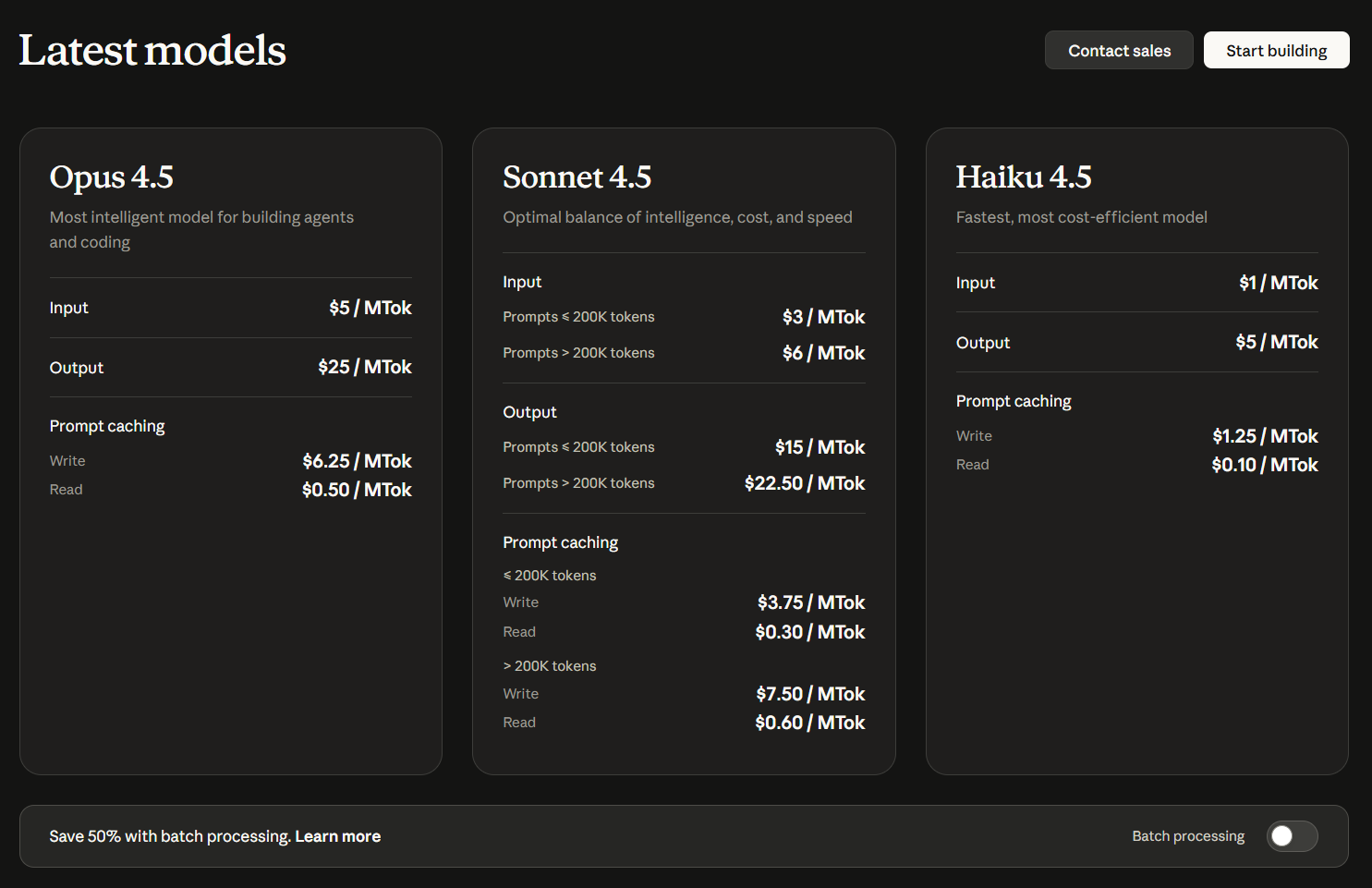
Subscription Plans
Claude Pro
$20/month- Access to Claude Sonnet 4.5
- Generous usage limits
- Claude Code included
- Switches to Sonnet after 50% usage
Best for: Regular users, light coding work
Claude Max
$100-200/month- Full Claude Opus 4.5 access
- Unlimited standard usage
- Priority during high demand
- Highest rate limits
Best for: Professional developers, heavy usage
API Access
Pay-as-you-go- Bring your own API key
- Per-token pricing
- No monthly commitment
- Full model selection
Best for: Variable usage, budget control
API vs Subscription Economics
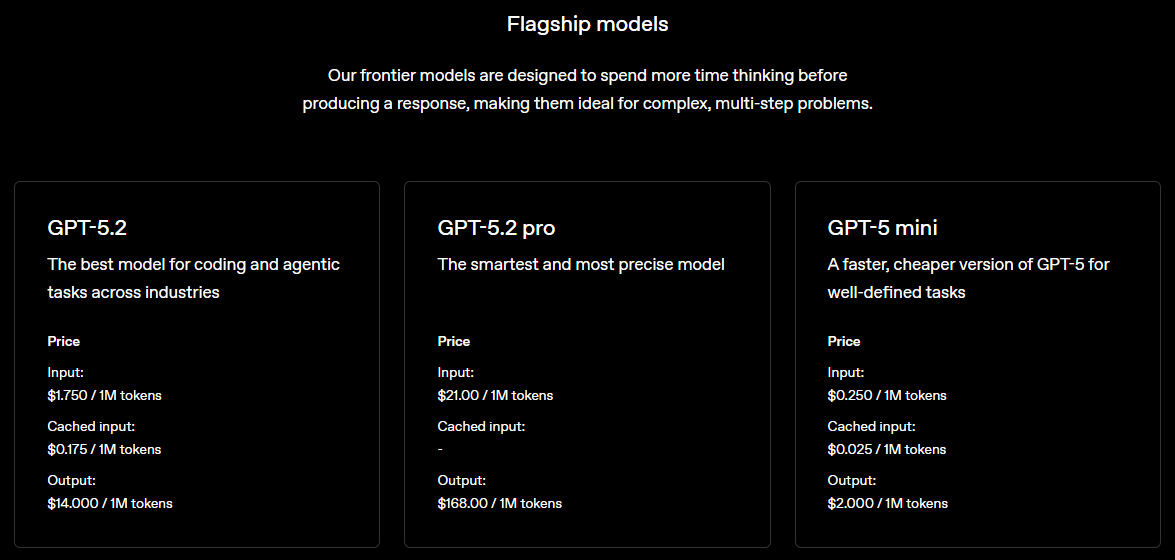
If you're doing serious development work, the math can get interesting. API pricing is based on tokens—both input (your code, context, conversation history) and output (Claude's responses). For large codebases with lots of context, API costs can add up quickly.
Token Economics Reality Check
When analyzing a large file (50KB+), you might consume 30,000-50,000 tokens in a single query. With context retention and follow-up questions, a single development session can easily use 200,000+ tokens. Run the math for your specific usage patterns before committing to a pricing model.
For most professional developers, Claude Max at $100-200/month ends up being more economical than API access. The unlimited usage removes the cognitive overhead of token counting.
Advanced Techniques
After months of intensive use, I've developed workflows that dramatically improve Claude Code's effectiveness. These aren't in any official documentation—they're patterns that emerge from real-world usage.
The Scratchpad Technique
Claude Code doesn't have a built-in scratchpad, but you can create one. Ask Claude to maintain a markdown file where it documents its thinking, decisions, and progress. This is invaluable for complex, multi-session projects.
Create a file at .claude/scratchpad.md and use it to document:
- All files you've analyzed or modified
- Key decisions and their reasoning
- Current progress on the task
- Any blockers or open questions

Update this file as you work. I'll reference it in future sessions.
The Dev Docs System
For complex projects, I use a three-file documentation system that Claude maintains:
📋 plan.md
High-level architecture and implementation plan. Updated when major decisions change. Claude reads this to understand project direction.
📝 context.md
Current state documentation. What's been built, what's in progress, known issues. Updated frequently during development.
✅ tasks.md
Granular task tracking. What to do next, what's blocked, what's completed. Your conversation starter for each session.
The Memory Hierarchy
Claude Code has four types of memory, each serving different purposes:
Memory Types
- Enterprise Policy: Organization-wide rules, coding standards, security requirements
- Project Memory: Project-specific context in CLAUDE.md files
- User Memory: Personal preferences that follow you across projects
- Session Memory: Current conversation context (cleared with /clear)
Custom Commands
Store frequently-used prompt templates in .claude/commands/. These become available as slash commands:
Please analyze and fix the GitHub issue: $ARGUMENTS

Follow these steps:
1. Use `gh issue view` to get issue details
2. Understand the problem described
3. Search codebase for relevant files
4. Implement necessary changes
5. Write and run tests to verify
6. Ensure code passes linting
7. Create a descriptive commit message
8. Push and create a PR
Use as: /project:fix-issue 1234
MCP Server Integration
Claude Code supports the Model Context Protocol (MCP), allowing it to connect to external tools and services. You can add Puppeteer for browser automation, Sentry for error tracking, databases, and more.
{
  "servers": {
    "puppeteer": {
      "command": "npx",
      "args": ["@anthropic-ai/mcp-server-puppeteer"]
    },
    "sentry": {
      "command": "npx",
      "args": ["@anthropic-ai/mcp-server-sentry"],
      "env": {
        "SENTRY_AUTH_TOKEN": "$SENTRY_TOKEN"
      }
    }
  }
}
Real-World Workflows
The PM2 Debugging Pattern
When I'm debugging backend services—especially complex setups with multiple microservices—I use PM2 with Claude Code Hooks for real-time error monitoring.
# Start services with PM2
pm2 start ecosystem.config.js

# Configure Hook to monitor PM2 logs
# When errors appear, Claude automatically:
# 1. Captures the error context
# 2. Identifies the failing service
# 3. Analyzes relevant code
# 4. Suggests fixes
For my setup with 7 microservices, this pattern transformed debugging from hours of log spelunking into minutes of focused problem-solving.
The GitHub PR Review Workflow
Claude Code can automatically review your pull requests. Run /install-github-app once, and Claude reviews every PR you create.
Customizing PR Reviews
The default review prompt is too verbose. Create a claude-code-review.yml with focused instructions:
direct_prompt: |
  Review this pull request for bugs and security issues only.
  Be concise. Do not comment on style or naming.
  Only report actual problems you find.
The result: Claude catches logic errors and security issues that humans often miss, while skipping the nitpicky comments about variable names that slow down review cycles.
Legacy Code Modernization
One of the most impressive Claude Code stories I've encountered: a 7-year developer used it to rebuild a 100,000-line codebase into 300,000 lines during a React 16 to React 19 migration. The project included complex features like voice recognition, video playback, and e-commerce functionality.
The developer reported that Claude Code understood the architectural intent behind legacy patterns and suggested modern equivalents that maintained the original behavior while improving maintainability.
Power User Tips
After extensive use and learning from the community, here are the tips that have made the biggest difference in my Claude Code experience:
Clear Context Often
Use /clear every time you start something new. Old conversation history eats tokens and can confuse the model. Fresh context, better results.
Start Small, Iterate
Take on bite-sized chunks of functionality. Claude shines when tasks are focused. Large, vague requests lead to large, vague problems.
Commit Frequently
Every time Claude completes something that works, commit to version control. You can always revert. You can't always remember what was working.
Keep Files Small
Files in the thousands of lines cause context leaks and hallucinations. Refactor large files proactively. Claude works better with modular code.
Use Paste Screenshots
On macOS: Cmd+Ctrl+Shift+4 to screenshot to clipboard, then Ctrl+V (not Cmd+V) to paste. Claude analyzes UI mockups, error screens, anything visual.
Ask for Self-Review
After Claude makes changes, ask it to review its own work. Surprisingly effective at catching issues it introduced. Different "mindset" for review vs. creation.
Write Files, Don't Copy
When Claude generates useful content, have it write directly to files instead of copying from the terminal. Avoids transcription errors and formatting issues.
Use /resume
Discovered late by many users: /resume lets you continue previous sessions. Don't restart from scratch—pick up where you left off.
The Stochastic Reality
Here's something important to understand: AI is fundamentally stochastic. The same prompt can produce different results. This isn't a bug—it's the nature of large language models. Two implications:
Prompt Quality Matters
The better your prompt, the more consistent your results. Vague instructions lead to variable outputs. Specific, well-structured prompts converge on reliable outcomes. Invest time in prompt engineering—it pays dividends.
When something doesn't work, try rephrasing rather than repeating. Different words activate different patterns in the model. "Fix this bug" might fail where "The loop at line 47 has an off-by-one error in the boundary condition" succeeds.
Community Experiences
I'm not the only one who's fallen for Claude Code. Here's what other developers are reporting:
"I've been a Cursor power user for over a year. I wrote the guide to Cursor tips that thousands of developers reference. And I've abandoned it all for Claude Code. For weeks now, I've been living entirely in Claude Code instead of Cursor's agents. Honestly, there's no going back."— Builder.io Engineering Blog
"The experience felt more like pair programming with a chatty engineer who explains their thought process along the way. It did catch several issues and I proceeded to have it fix them."— Mike Sparr, Medium
"For the last 30 days I have had Claude Code write the majority of my code and taking on a more product manager role. The TL;DR: make it follow a plan, manage context as efficiently as possible."— MBV, Developer Blog
"Claude Code has been one of the most enjoyable product experiences I have ever had. A massive amount of tasteful engineering has gone into UX/UI and just the code/prompts to let Claude feel comfortable in the harness."— Sankalp, Bear Blog
The Post-Junior Developer
Multiple developers describe Claude Code as performing at a "post-junior" level: "There's a lot of experience there and a whole boat-load of energy, but it doesn't really do a good job remembering things." This matches my experience. Claude Code is brilliant at execution but needs guidance on direction.
Research backs this up: agent-based tools like Claude Code show 18-250% performance improvement over base LLMs on repository-level tasks. Context awareness is the key differentiator. Claude Code doesn't just write code—it understands your project.
The Workflow Evolution
Many developers report a similar journey: Claude starts as a sidebar, then becomes the primary interface.
"I used to have Claude as a small sidebar while coding in the main editor. Now I default to Claude first and only peek at code when reviewing changes. It's become my primary interface, not my secondary one."
This represents a fundamental shift in how we think about development. The code becomes the output, not the input. Your job becomes describing what you want and reviewing what you get, rather than typing every character yourself.
Final Verdict
Best-in-class agentic coding experience
Seamless extension, gentle learning curve
CLI-native experience that respects your workflow
Heavy usage can get expensive without Max plan
VS Code extension makes it approachable
Policy controls and security features built-in
Claude Code isn't just another AI tool. It's a glimpse of what software development looks like in the age of capable AI assistants. The terminal interface might seem like a step backward, but it's actually a step toward something more authentic—a tool that trusts developers and gets out of the way.
Will it replace developers? No. But it will transform what developers do. Less typing, more thinking. Less debugging, more designing. Less time in documentation, more time in creation.
I started this journey skeptical about Anthropic, convinced that OpenAI was the only serious player. Claude Code changed my mind. Not through marketing or hype, but through the daily experience of having a capable, thoughtful partner in my terminal, ready to help me build whatever I can imagine.
The command line is where software development began, and in a strange way, it's where the future is emerging. Claude Code represents something rare: a tool that respects the craft while amplifying our capabilities. The code you write is still yours. The ideas are still yours. But now you have a partner who never gets tired, never loses patience, and has read every programming book ever written. Welcome to the future of development.


Discussion
0 commentsLeave a comment
Be the first to share your thoughts on this article!